
THE BIG IDEA
What exactly is aptOPS?
aptOPS is a community-powered way to make Virtual Air Traffic (VAT) operate an airport more like its real-world counterpart.It adds the local knowledge that your X-Plane scenery might be missing or may no longer reflect.
Scenery built with X-Plane's WorldEditor (WED) already contains useful airport data. But real airports change: airlines switch terminals, runway preferences vary with conditions, and arriving traffic rarely follows a perfectly predictable line all the way to final. aptOPS lets you fine-tune those details without needing to replace the airport or edit its scenery files.
aptOPS is additive, not a replacement.
You do not have to complete every configuration area to add or submit an airport. Fix one thing you know is missing and leave everything else alone. If you don't supply an aptOPS override, VAT continues to use its existing default behavior.
The new General info tab comes first. It shows airport details and includes the checkbox for mandatory follow-me vehicle guidance.
Your existing airport data remains the safety net. Without matching aptOPS runway rules or stand assignments, VAT falls back to the normal WED/scenery usage rules. Without a custom arrival, VAT uses its usual flight-plan and logical STAR/transition handling.
GET STARTED FASTER
Your runways are ready when your airport is.
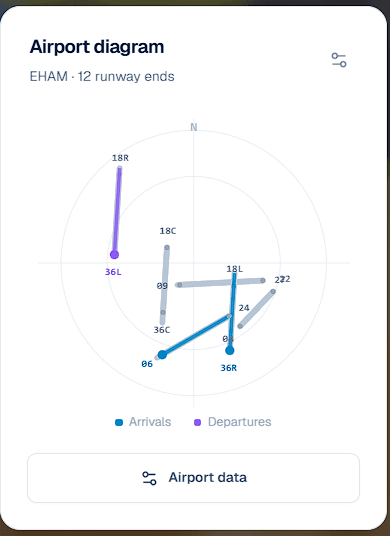
You no longer need to upload an X-Plane apt.dat file as the first step. When you create a new airport workspace, aptOPS automatically looks up the airport's runway directions in the website's shared scenery data. It also imports the airport elevation and any available reference coordinates. The new draft opens with runway geometry already in place, ready for your own rules.
Sign in, select Create airport, enter an ICAO code or search by name, then select Create airport draft.
A small progress bar follows the server's apt.dat scan, then shows when the airport draft is being saved.
aptOPS opens General info. Check the airport details and any required follow-me guidance, then open Runway rules to use the imported runway directions.
Open Airport data after creating the airport, choose your own apt.dat, review the replacement runway geometry, and select Apply airport data. Then Save draft to keep it. You can also choose Reload defaults to return to the shared data.
What if your airport is not in the shared file? aptOPS explains the problem rather than silently creating an airport without runways. You can choose Create without runways and then import your custom scenery in Airport data or add runway geometry manually. Existing aptOPS JSON imports with runways retain their own geometry.
RUNWAY ASSIGNMENTS
The right runway for the right conditions.
A multi-runway airport doesn't always operate the same way. Wind, traffic flow, noise restrictions, and time of day may all affect which runway is used for landing or departure. aptOPS lets you turn that knowledge into logical runway configurations, such as a daytime flow, a northerly-wind setup, or a quieter night-time operation.
The imported runway ends are already listed in Runway rules when you open a newly created airport. Create a configuration, choose its arrival and departure runway ends, then define its wind-direction sector, wind-speed range and optional time window. Give each rule a priority: when several rules match, the highest-priority matching configuration wins. If none match, VAT can fall back to normal scenery runway selection.


Select any screenshot to see it in full size.
Why it matters: Instead of every arrival picking a runway using generic assumptions, an airport can follow recognizable real-world operating patterns.
STANDS & GATES
Put the right aircraft in the right place.
Nothing breaks the illusion quite like an airline parked at a gate it would never use, or a cargo freighter occupying a passenger stand. aptOPS allows you to override outdated or incomplete stand assignmentswhile preserving the underlying parking positions in your scenery.
Open Stands & gates, add a stand using its scenery name, and describe who can use it. You can set a maximum aircraft size (wingspan code), limit it to specific aircraft types or classifications, specify airline/operator ICAO codes, and flag cargo-only positions. The editor also offers a Test matching tool to check which stands qualify for an aircraft.
Same parking position. Smarter matching.
Why it matters: Your terminal starts to look right. The right operators, appropriately sized aircraft and cargo operations end up where you'd expect them.
CUSTOM ARRIVAL VECTORS
Make the journey to final feel alive.
By default, VAT can follow a flight's briefed flight plan and logical STAR or transition toward the approach. That's useful, but real-world ATC often does something more interesting: controllers issue headings to sequence aircraft and guide them toward a final intercept.
With the Arrival routes editor, you can draw an optional custom vectoring pathfor a particular arrival runway. Start with an entry point farther from the airport, then add connected waypoints in the order they should be flown. When VAT detects an aircraft near that first point, it can guide the aircraft along your route, waypoint by waypoint.
The last leg needs to approach the assigned runway on a valid intercept course — an angle of 90° or less relative to the final approach direction. After the final intercept, VAT can hand the aircraft over to Tower or the appropriate ATC station. Define multiple arrivals beginning at the same entry point and VAT can randomly choose between them, making traffic flow less repetitive.

The map-based editor supports adding and dragging route points, checking route geometry, and snapping the last point to the runway centerline. These custom arrivals are entirely optional: if you haven't defined one, VAT keeps using its normal arrival behavior.
Why it matters: Instead of one identical arrival after another, aircraft can fly more believable, airport-specific paths into the traffic stream.
READY TO START?
One airport. One small improvement.
You don't need to become an airport-data expert overnight. Start with something you know well — perhaps a runway preference at your home airport, a misplaced operator at a gate, or an approach that could benefit from realistic vectoring.
- 1Create your airport workspace.
Sign in, select Create airport, and enter its ICAO code. aptOPS loads runway geometry and elevation from its shared apt.dat while the progress bar tracks the scan.
- 2Pick just one area to improve.
Runways are already available for normal airports, so start with General info, Runway rules, Stands & gates or Arrival routes. Only open Airport data if you need custom runway geometry.
- 3Preview and save your changes.
Try the runway conditions or test stand matching, check your arrival geometry, then save your draft.
- 4Submit for community review.
Explain what changed and why. An independent reviewer can approve the contribution before the published airport data changes.
An airport can have just one aptOPS contribution — or gradually build all four areas. Either way, the goal is the same: more realistic airport operations that reflect the real world.